

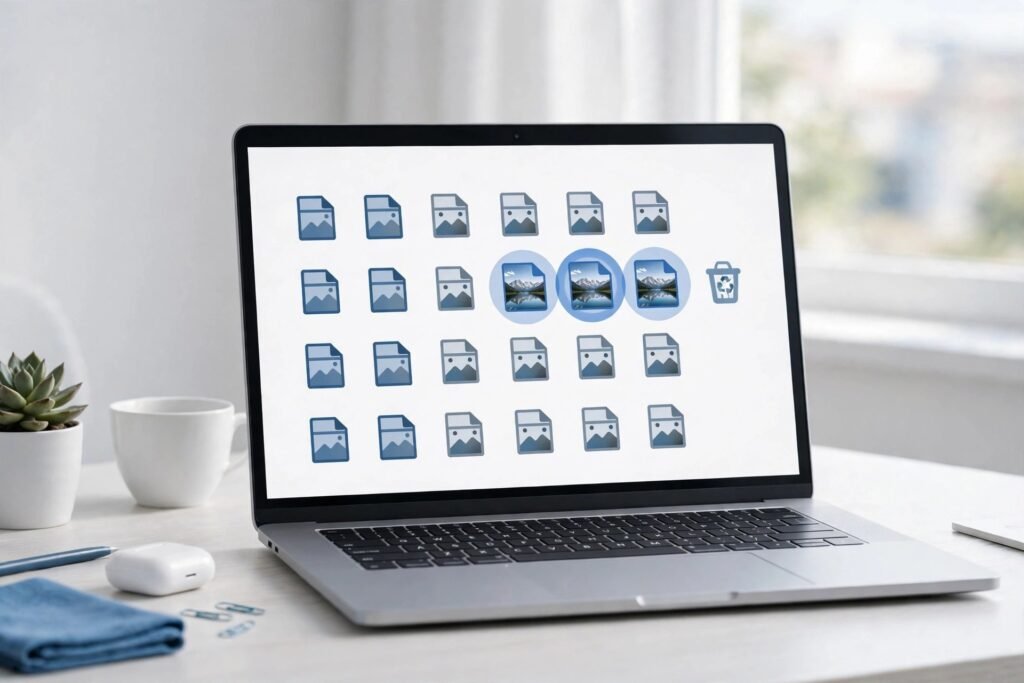
Duplicate files build up on most computers over time. Photos get copied during backups. Documents get saved twice under slightly different names. Downloads pile up without anyone noticing the repeats. A duplicate file finder scans your storage, identifies genuine copies, and removes them safely. This frees up space and speeds up other processes, like antivirus scans and backups. This guide covers how these tools work and how to use one safely.
How Duplicate File Finders Actually Work
Most duplicate finder tools compare files using a checksum, a kind of digital fingerprint generated from a file’s actual content. Two files with identical checksums are genuine duplicates, even if they have different names or sit in different folders. This method is far more reliable than comparing file names alone, since two completely different files can share a name while two identical files can have completely different names.
What Good Duplicate Finder Software Should Do
- Scan by content, not just filename. Name-based matching misses genuine duplicates and can wrongly flag unrelated files that happen to share a name.
- Support all common file types. Documents, photos, videos, and audio files should all be scannable in one pass.
- Show a preview before deleting. Being able to see exactly what will be removed prevents accidentally deleting something important.
- Offer a “move” option, not just delete. Moving duplicates to a review folder first is safer than immediate permanent deletion.
Why Removing Duplicates Actually Helps
| Benefit | Why It Happens |
|---|---|
| Freed storage space | Duplicate files, especially large photos and videos, often account for significant wasted space |
| Faster antivirus scans | Fewer total files means less for security software to check during a scan |
| Faster backups | Cloud and local backup tools process fewer files, completing backups more quickly |
| Easier file organisation | Removing clutter makes it genuinely easier to find the specific file you’re looking for |
Using a Duplicate Finder Safely
- Back up important files before running a large deletion, in case something gets removed that shouldn’t have been.
- Review flagged duplicates before confirming deletion, rather than trusting an automatic bulk removal option blindly.
- Be particularly careful with photo libraries, since slightly edited versions of the same photo can sometimes be wrongly flagged as identical duplicates.
- Run a scan periodically, such as every few months, rather than only once, since duplicates accumulate continuously through normal use.
Expert Insight
IT support professionals who handle storage cleanup regularly note that photo libraries cause the most accidental deletions, since visually similar but genuinely different photos can be mistaken for duplicates if a tool relies on loose matching criteria. Choosing software with strict, checksum-based matching, and always reviewing results before deleting, avoids this common mistake.
Frequently Asked Questions
Is it safe to delete files a duplicate finder flags automatically?
Reviewing flagged files before deletion is safer than trusting fully automatic removal, particularly for photo libraries where similar but distinct files can occasionally be mismatched.
Will removing duplicate files speed up my computer?
It can help indirectly, mainly by speeding up processes like antivirus scans and backups that need to check every file, rather than directly speeding up general computer performance.
Do duplicate finder tools work on cloud storage as well as local drives?
Many modern tools support both, though this varies by software, so check specific compatibility with your cloud storage provider before relying on it.
Which Duplicate Finder Fits Which Job
The right tool depends on what you need to clean. A photo library needs different matching to a folder of documents. A free tool is enough for most people. A paid tool earns its price when you clean large libraries often.
dupeGuru is the best free starting point for most people. It is open source, it works on Windows, Mac, and Linux, and it matches files by content, not just by name. It also has a fuzzy matching mode that finds files with similar names, and a picture mode for near identical photos. It is slower than paid tools on very large photo libraries, and its interface looks plain, but it costs nothing and it gets the fundamentals right. One warning matters here. A phishing site at dupeguru.com has been caught distributing malware disguised as the real program, so download it only from its official source.
Easy Duplicate Finder suits beginners who want guidance. It works on Mac and Windows, it previews matches clearly, and it lets you undo a deletion if you catch a mistake. A free version covers basic cleanup. The paid version costs around 40 dollars as a one-time licence. It also handles cloud folders, which matters if your duplicates live in a synced drive.
Duplicate Cleaner Pro is the strongest choice for big cleanups on Windows. It costs around 40 to 55 dollars as a one-time licence. Its selection assistant is the reason to pay. It marks files by rule, so you can keep the newest copy, keep the copy in a chosen folder, or keep the highest resolution image, instead of deciding on thousands of files one by one. It also matches rotated and resized photos, which basic tools miss.
AllDup is free donationware for Windows and gives advanced users fine control over matching rules. Czkawka is another open source option with similar control. Auslogics Duplicate File Finder is a friendly free Windows option with a Rescue Center, so deleted files can be restored. On a Mac, Gemini 2 is the best known option, at around 1.95 dollars a month, and it works well for photo libraries that need set and forget cleanup.
A Safe First Cleanup, Step by Step
Start small. Pick one folder, such as Downloads, and run your first scan there. Do not scan a whole drive on day one. A single folder limits the damage if anything goes wrong, and it teaches you how the tool presents its results.
Before you scan, check that your backup is current. A duplicate finder only removes files you tell it to remove, but a backup is your safety net if you misread a result. Then choose content comparison, not filename matching. Good tools compare file contents using a hash, a unique fingerprint made from the file itself. Files with identical fingerprints are true duplicates. Files with the same name can be completely different, and files with different names can be identical. Only content proves it.
When the results appear, look at each duplicate group before you delete anything. Check the file paths, the dates, and the sizes. Use the preview feature for photos and documents. Most tools mark one file in each group as the reference copy that cannot be deleted by accident. Keep that protection switched on.
Use the auto select feature with care. A rule such as keep newest works well in most groups, but verify the selection before you confirm. Then send the duplicates to the Recycle Bin or Trash, never straight to permanent deletion. Live with the cleanup for a week and check that every original still opens. Only then empty the bin. If you scan a cloud synced folder, check whether the tool deletes local copies or the cloud source itself before you confirm anything.
Exclude system folders, app folders, caches, and backup archives from every scan. These folders contain files that look like duplicates but are needed by your software. Deleting them can break applications or your operating system. A test on a real machine found that around 9 percent of a large file library was exact duplicates, so even a careful cleanup frees a useful amount of space without touching anything risky.
Can a duplicate finder delete the wrong files?
Yes, if you let it delete automatically without reviewing the results. Similarity matching can flag two different photos as duplicates, and filename matching can flag two different documents that share a name. The risk is easy to control. Always preview the matches, use content based matching, keep the reference copy protected, and send deletions to the Recycle Bin first. A reputable tool never deletes anything without your permission. The danger comes from rushing, not from the software itself.
Do duplicate finders work on photos and cloud drives?
Yes, with limits. Most good tools have a picture mode that matches similar photos, including resized or slightly edited copies. Duplicate Cleaner Pro and Gemini 2 handle this well. For cloud drives, it depends on the tool and the setup. Some tools scan the local copies of synced files, while others connect to the cloud service directly. Check how your chosen tool handles cloud folders before you run a scan, and confirm whether deleting a file removes it from the cloud as well as from your computer.
Final Thoughts
A duplicate file finder is a genuinely useful tool for reclaiming storage space and speeding up routine processes like backups and scans, provided results are reviewed before deletion. For related reading, see our guide to why cloud storage is essential for business documents.


