Move to iOS is not working, and your new iPhone is stuck on the setup screen. The fix is usually simple. In most cases the transfer fails because the Android phone leaves the iPhone’s temporary Wi-Fi network, the app gets interrupted, or the iPhone runs out of storage. Work through the seven fixes below in order, and most transfers complete on the first or second retry. Move to iOS is Apple’s free Android app. It moves contacts, message history, photos, videos, web bookmarks, mail accounts, calendars and WhatsApp messages to a new iPhone during setup.
Before you start: the 5-minute checklist
Run this checklist before every retry. It removes the causes behind most failed transfers, and it takes five minutes. First, update the Move to iOS app on the Android phone from Google Play, and update the iPhone to the latest iOS version. Old versions on either side cause pairing failures that look like random errors.
Second, plug both phones into power and keep them close together, within a metre or so, until the iPhone loading bar finishes. Apple advises exactly this in its Move from Android guidance. A phone that runs out of battery mid transfer, or drifts out of range, stops the whole process.
Third, turn off mobile data on the Android phone and turn off any feature that switches Wi-Fi networks automatically, such as Smart Network Switch on Samsung or Adaptive Connectivity on Pixel. The iPhone creates a temporary private Wi-Fi network for the transfer, and your Android phone must stay on it. If it jumps back to your home Wi-Fi or drops to mobile data, the transfer breaks. Leave Wi-Fi switched on, and turn off any VPN on the Android phone too.
Fourth, check the storage. The free space on the iPhone must fit everything you selected on the Android phone, including content from a memory card. Check it on the iPhone under Settings, General, iPhone Storage. If space is tight, free up storage on your Android phone first and transfer less data.
Fifth, if the iPhone is a refurbished model, check the battery health figure before you start. A worn battery that dies during a long transfer looks exactly like a software failure. Charge it fully first.
Stuck on “Preparing”: what it means and how long to wait
Stuck on Preparing is the most common complaint, and it is often not a failure at all. The app is reading your Android phone and working out what to send. A phone full of photos and videos can sit on this screen for a long time while nothing seems to happen. Give it at least ten minutes before you assume it has frozen, and watch for the progress bar or the data total changing.
If the screen has not changed after ten minutes and the bar has not moved, restart both phones and try again. Power both off completely, wait 30 seconds, power them on, and start the transfer from the iPhone setup screen. Do not just close the app on one phone. A clean restart clears the temporary network and the stuck session together.
If Preparing stalls again on the second attempt, shrink the transfer. Move to iOS lets you choose what to send, so unselect the biggest categories, such as videos, and move those later with a computer or a cloud service. A smaller transfer that finishes beats a large one that never does.
Wi-Fi drops mid-transfer: stop Android switching networks
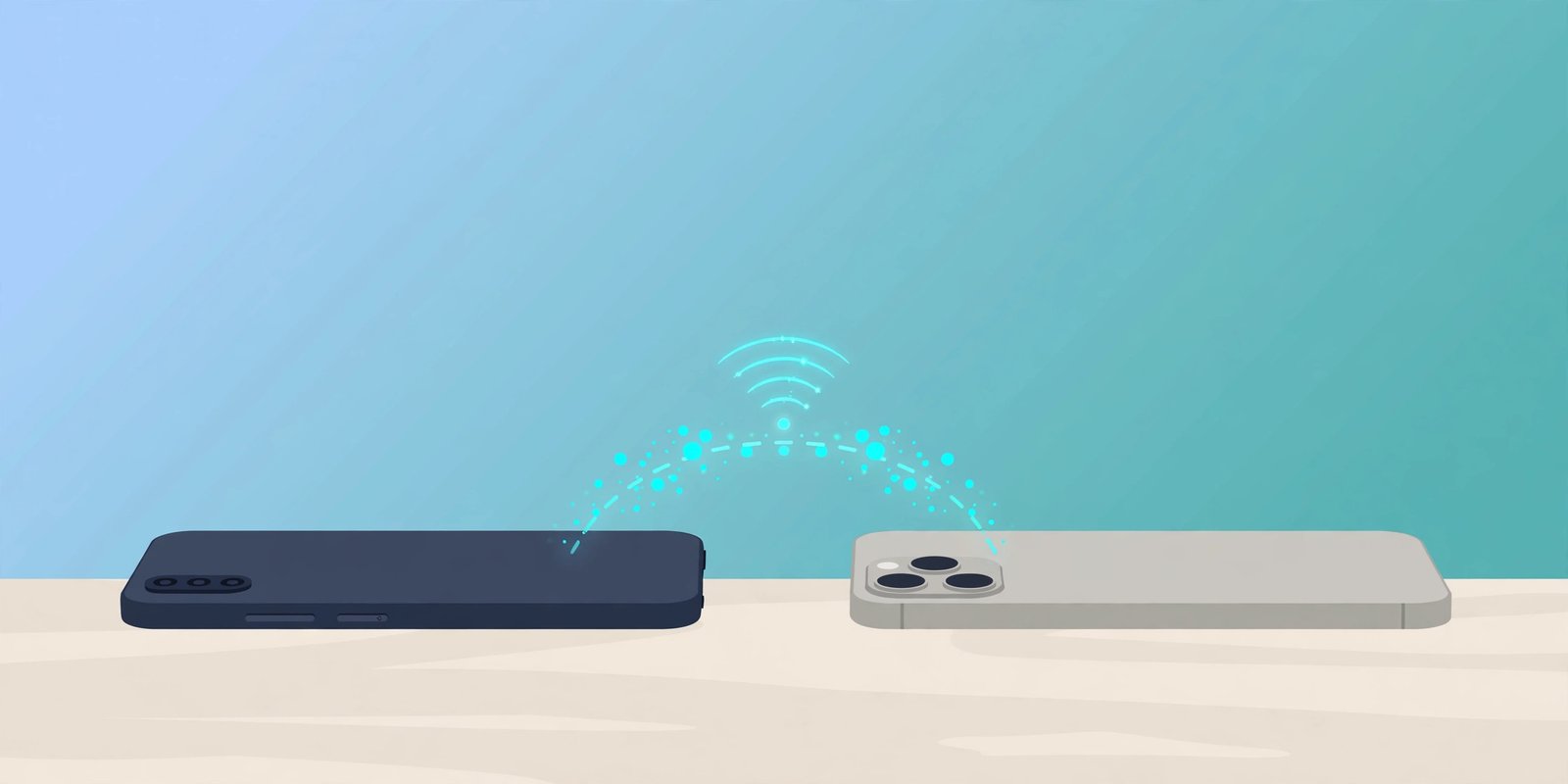
A transfer that starts well and then stops halfway is almost always a Wi-Fi problem. Move to iOS uses Wi-Fi Direct, which is a direct wireless link between two devices with no router in the middle. The iPhone creates its own temporary network, and the Android phone joins it with a one-time code. The link is fragile by design, and anything that pulls the Android phone off that network ends the transfer.
Turn off mobile data on the Android phone, then turn off every automatic switching feature you can find. On Samsung this is Smart Network Switch or Switch to Mobile Data, under Wi-Fi settings. On Pixel it is Adaptive Connectivity. Also forget saved Wi-Fi networks that are in range, so the phone has nothing to jump to. Keep Move to iOS open on screen for the whole transfer. Opening another app, taking a call or letting the screen lock can interrupt it, so set the screen timeout to its longest setting and leave the phone alone.
If the transfer still drops, move both phones away from other Wi-Fi networks and Bluetooth devices, and try again with nothing else running on the Android phone. Close background apps first, and turn off Battery Saver and any battery optimisation on the Move to iOS app, because Android can kill background work to save power.
No code on the iPhone, or the code will not work
The one-time code appears on the iPhone only when it reaches the right setup screen. During iPhone setup, tap Transfer Your Apps and Data, then From Android, then Transfer with App. If the iPhone shows a different screen, or it is already past setup, no code will appear. Move to iOS works only during initial setup, so an iPhone that is already set up must be erased before you can use it. That is covered in the start-over section below.
If the code appears but the Android phone rejects it, restart both phones and generate a fresh code. A code from an earlier attempt will not work after a restart. Type it carefully, and enter it quickly, because the pairing window is short. If the code still fails, force stop Move to iOS on Android, clear its cache under Settings, Apps, Move to iOS, Storage, and reopen it. If the app keeps crashing, uninstall it and install a fresh copy from Google Play.
Not enough storage on the iPhone
A transfer can fail or finish incomplete when the iPhone fills up. The error is not always clear, so check the numbers yourself before you retry. Add up the photos, videos, messages and apps you selected on Android, then compare that with the free space shown under Settings, General, iPhone Storage. Remember that the iPhone itself needs working space beyond the transfer, so leave a few gigabytes spare.
The simplest fix is to transfer less. Unselect videos and large files in Move to iOS, and move them later by cable or cloud. Also check the Android phone for a memory card, because Move to iOS includes selected card content in the transfer, and that can push the total over the limit without you realising. If you bought a smaller storage iPhone than your Android phone had, you may need to leave some content behind permanently. There is no setting that compresses the transfer.
Transfer finished but photos or WhatsApp chats are missing
First, wait. The iPhone loading bar must finish completely before you judge the result. Photos can appear in the Photos app a little after the bar completes, especially a large library. Open the Photos app and give it a few minutes to index. Check the Albums view too, because albums transfer separately from the main library.
WhatsApp chats move across only if you complete the WhatsApp step inside the transfer. Keep WhatsApp updated on both phones, and do not skip that screen when it appears. If you tapped past it, the chats will not be there, and the only fix is to erase the iPhone and run the transfer again with the WhatsApp step completed. Note that WhatsApp Business chats are not supported by the transfer.
Some content never transfers with Move to iOS, and that is by design. Music, books and PDFs must be moved manually, usually through a computer or a cloud service. Paid apps do not transfer either, although free apps available on both Google Play and the App Store will download on the iPhone if you select them. If a specific app is missing, search for it in the App Store and install it yourself.
The wired alternative: move data with a USB-C cable
If wireless retries keep failing, a cable removes the Wi-Fi problem entirely. On iPhone 15 models and later, you can connect the two phones with a USB-C cable during setup and choose the wired transfer option. Connect the cable when the iPhone asks how you want to transfer, then follow the prompts on both screens. Keep both phones plugged into power and do not unplug the cable until the iPhone loading bar finishes.
The wired option needs a USB-C port on both phones and a cable that carries data, not just power. Some cheap charging cables do not, so use the cable that came with a phone or a known good data cable. If the iPhone does not offer a wired option, your model may not support it, and the wireless fixes above are your route.
When to start over: erase the iPhone and retry
If two clean attempts have failed, start over properly. Move to iOS cannot run on an iPhone that has finished setup, so you must erase the iPhone to return it to the Hello screen. Before you do that, back up the iPhone before you erase it if it holds anything you need. Then go to Settings, General, Transfer or Reset iPhone, Erase All Content and Settings, and run through setup again until you reach Transfer Your Apps and Data.
Before the retry, reset the iPhone network settings as well. Go to Settings, General, Transfer or Reset iPhone, Reset, Reset Network Settings. This clears saved Wi-Fi passwords and any bad network state that may be blocking the temporary network. You will need to rejoin your home Wi-Fi afterwards, but the transfer network is created fresh by the iPhone, so it is not affected.
If the transfer fails a third time after a full erase, the problem is likely on the Android side. Try the transfer with a different Android phone if you can, or move the data in stages with a computer: photos and videos first, then contacts and messages. As a last step, contact Apple Support with the exact error message and the step where it fails, because that detail decides which fix they offer.
Frequently asked questions
Does Move to iOS transfer WhatsApp chats?
Yes, if you complete the WhatsApp step during the transfer. Keep WhatsApp updated on both phones, and do not skip that screen. WhatsApp Business chats are not supported, and chats will not move if you finish setup first and try later.
How long should a Move to iOS transfer take?
It depends on how much data you are moving. A small transfer with a few hundred photos can finish in minutes. A phone full of photos and videos can take an hour or more. The Preparing stage alone can take ten minutes on a large library, so do not restart it just because the screen looks frozen.
Can I use my phones during the transfer?
No. Keep Move to iOS open on the Android phone, and leave both phones alone until the iPhone loading bar finishes. Switching apps, taking a call or letting the screen lock can interrupt the transfer and force you to start again.
Do I need Wi-Fi or mobile data for Move to iOS?
You need Wi-Fi switched on, but not your home Wi-Fi or mobile data. The iPhone creates its own temporary Wi-Fi network for the transfer, and the Android phone joins it. Turn mobile data off on Android so the phone cannot leave that network mid transfer.
What does Move to iOS not transfer?
Music, books and PDFs do not transfer, and neither do paid apps. Move those files manually with a computer or a cloud service, and install paid apps again from the App Store. Free apps that exist on both stores will download automatically if you select them.
Conclusion
Most Move to iOS failures come down to three things: the Android phone leaving the temporary Wi-Fi network, the app being interrupted, or the iPhone running out of space. Run the five minute checklist, keep both phones plugged in and close together, and leave Move to iOS on screen until the iPhone bar finishes. If wireless keeps failing, try the USB-C cable on a supported iPhone, and if two attempts fail, erase the iPhone and start over with a smaller transfer. One careful retry usually does it.